What are Offline Evaluations and How to Set Them Up for Your AI System Using Maxim AI
Introduction
Before deploying your AI system to production, you need confidence that it performs well across various scenarios, maintains quality standards, and produces consistent results. This is where offline evaluations become essential.
Offline evaluations use curated datasets, scenario simulations, and evaluators to benchmark prompts, workflows, and agents before deployment. They involve running prompt tests or agent tests with predefined datasets and evaluators, comparing versions, and generating reports for regression analysis. This pre-release testing approach allows you to experiment with controlled data, identify issues early, and iterate rapidly without impacting live users.
Maxim AI provides a comprehensive platform for offline evaluations, covering everything from prompt experimentation and testing to end-to-end application testing using workflows. In this guide, we'll explore the key concepts and show you exactly how to set up offline evaluations for your AI system.
Understanding Offline Evaluation Concepts
Prompts
Prompts are text-based inputs provided to AI models to guide their responses and influence the behaviour of the model. The structure and complexity of prompts can vary based on the specific AI model and the intended use case. Prompts may range from simple questions to detailed instructions or multi-turn conversations. They can be optimised or fine-tuned using a range of configuration options, such as variables and other model parameters like temperature, max tokens, etc, to achieve the desired output.
Here's an example of a multi-turn prompt structure:
| Turn | Content | Purpose |
|---|---|---|
| Initial prompt | You are a helpful AI assistant specialized in geography. | Sets the context for the interaction (optional, model-dependent) |
| User input | What's the capital of France? | The first query for the AI to respond to |
| Model response | The capital of France is Paris. | The model's response to the first query |
| User input | What's its population? | A follow-up question, building on the previous context |
| Model response | As of 2023, the estimated population of Paris is about 2.2 million people in the city proper. | The model's response to the follow-up question |
Prompt Comparisons
Prompt comparisons help evaluate different prompts side-by-side to determine which ones produce the best results for a given task. They allow for easy comparison of prompt structures, outputs, and performance metrics across multiple models or configurations.
Prompt comparison enables a streamlined approach for various workflows:
- Model comparison: Evaluate the performance of different models on the same Prompt
- Prompt optimization: Compare different versions of a Prompt to identify the most effective formulation
- Cross-Model consistency: Ensure consistent outputs across various models for the same Prompt
- Performance benchmarking: Analyze metrics like latency, cost, and token count across different models and Prompts
Agents via No-Code Builder
Agents are structured sequences of AI interactions designed to tackle complex tasks through a series of interconnected steps. Agents provide a visual representation of the workflow, and allow for code-based and API configuration.
Workflows (Agents via HTTP Endpoint)
Workflows enable end-to-end testing of AI applications via HTTP endpoints. They allow seamless integration of existing AI services without code changes, featuring payload configuration with dynamic variables, playground testing, and output mapping for evaluation.
Test Runs
Test runs are controlled executions of prompts, no-code agents or http endpoints to evaluate their performance, accuracy, and behavior under various conditions. They can be single or comparison runs providing detailed summaries, performance metrics, and debug information for every entry to assess AI model performance.
Tests can be run on prompts, no-code agents, http endpoints or datasets directly.
Evaluators
Evaluators are tools or metrics used to assess the quality, accuracy, and effectiveness of AI model outputs. Maxim has various types of evaluators that can be customized and integrated into workflows and test runs.
| Evaluator type | Description |
|---|---|
| AI | Uses AI models to assess outputs |
| Programmatic | Applies predefined rules or algorithms |
| Statistical | Utilizes statistical methods for evaluation |
| Human | Involves human judgment and feedback |
| API-based | Leverages external APIs for assessment |
Pre-Built Evaluators
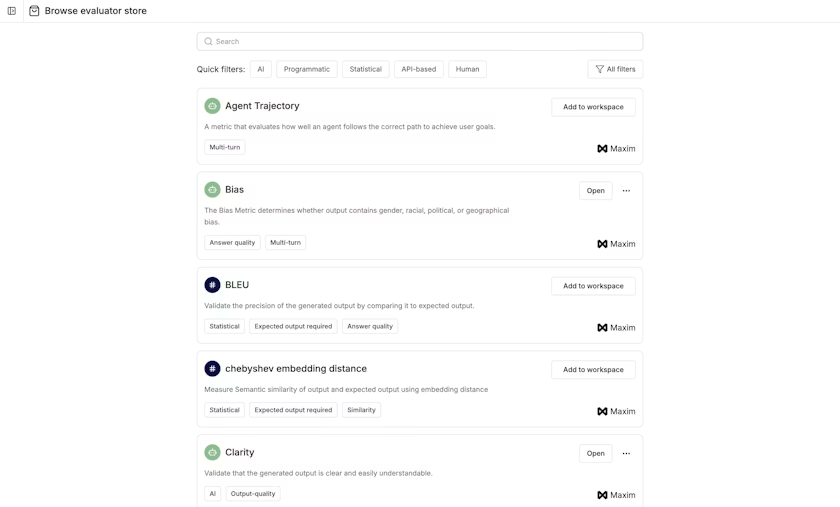
A large set of pre-built evaluators are available for you to use directly. These can be found in the evaluator store and added to your workspace with a single click.
Maxim-created Evaluators: These are evaluators created, benchmarked, and managed by Maxim. There are three kinds:
- AI Evaluators: These evaluators use other large language models to evaluate your application (LLM-as-a-Judge)
- Statistical Evaluators: Traditional ML metrics such as BLEU, ROUGE, WER, TER, etc.
- Programmatic Evaluators: JavaScript functions for common use cases like validJson, validURL, etc., that help validate your responses
Custom Evaluators
You can create your own custom evaluators in several ways:
AI Evaluators: These evaluators use other LLMs to evaluate your application. You can configure different prompts, models, and scoring strategies depending on your use case. Once tested in the playground, you can start using the evaluators in your endpoints.
Programmatic Evaluators: These are JavaScript functions where you can write your own custom logic. You can use the {{input}}, {{output}}, and {{expectedOutput}} variables, which pull relevant data from the dataset column or the response of the run to execute the evaluator.
API-based Evaluators: If you have built your own evaluation model for specific use cases, you can expose the model using an HTTP endpoint and integrate it within Maxim for evaluation.
Human Evaluators: This allows for the last mile of evaluation with human annotators in the loop. You can create a Human Evaluator for specific criteria that you want annotators to assess. During a test run, simply attach the evaluators, add details of the raters, and choose the sample set for human annotation.
Datasets
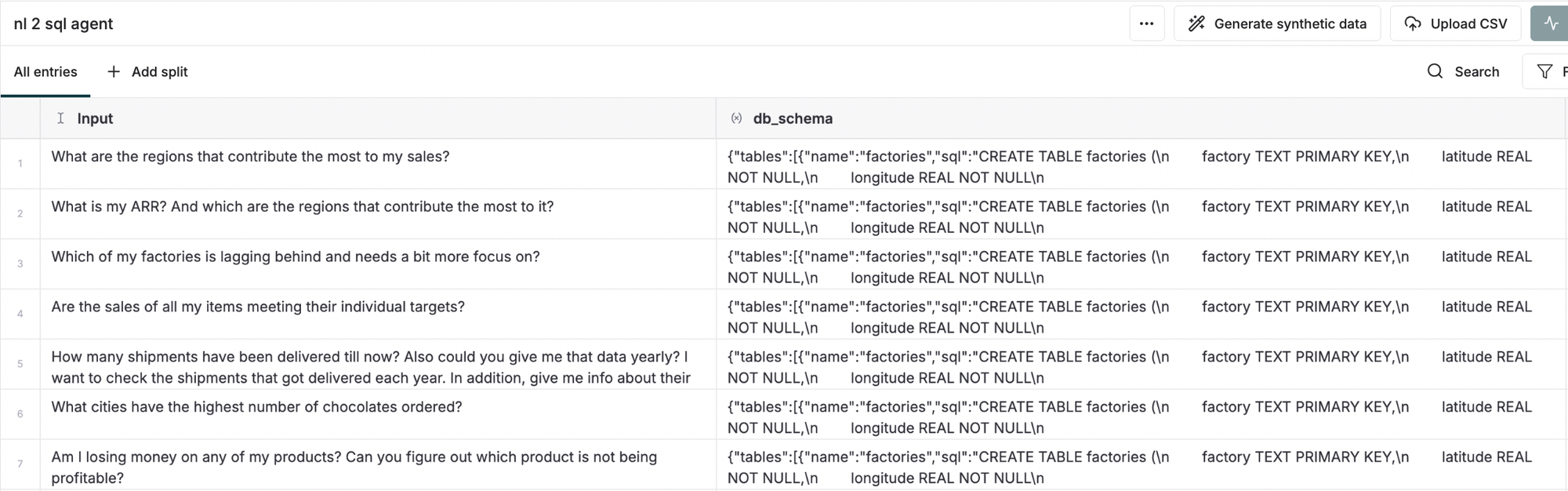
Datasets are collections of data used for training, testing, and evaluating AI models within workflows and evaluations. They allow users to test their prompts and AI systems against their own data, and include features for data structure management, integration with AI workflows, and privacy controls.
Dataset Properties
Datasets in Maxim support various properties that enhance testing:
- Variables: Key-value pairs used to parameterize prompts or endpoint payloads, allowing dynamic substitution of content during testing
- Expected Tool Calls: This allows you to specify which tools (such as APIs, functions, or plugins) you expect an agent to use in response to a scenario
- Conversation History: Conversation history allows you to include a chat history while running Prompt tests
- Expected Steps: You can specify the sequence of actions or decisions that an agent should take in response to a given scenario
- Scenario: A detailed context or user simulation representing the environment and purpose behind the test to ensure realistic behavior
Maxim understands that having high-quality datasets from the start is challenging and that datasets need to evolve continuously. Maxim's platform ensures data curation possibilities at every stage of the lifecycle, allowing datasets to improve constantly.
Context Sources
Context sources handle and organize contextual information that AI models use to understand and respond to queries more effectively. They support Retrieval-Augmented Generation (RAG) and include API integration, sample input testing, and seamless incorporation into AI workflows. Context sources enable developers to enhance their AI models' performance by providing relevant background information for more accurate and contextually appropriate responses.
Context sources in Maxim allow you to expose your RAG pipeline via a simple endpoint irrespective of the complex steps within it. This context source can then be linked as a variable in your prompt or workflow and selected for evaluation.
Prompt Tools
Prompt tools are utilities that assist in creating, refining, and managing prompts, enhancing the efficiency of working with AI prompts. They feature custom function creation, a playground environment, and integration with workflows.
Creating a prompt tool involves developing a function tailored to a specific task, then making it accessible to LLM models by exposing it as a prompt tool. This allows you to mimic and test an agentic flow.
Setting Up Offline Evaluations
Method 1: Prompt Evaluation via UI
Step 1: Create or Navigate to a Prompt
Navigate to the Evaluate section in Maxim and create a new prompt or select an existing one.
Step 2: Use the Prompt Playground
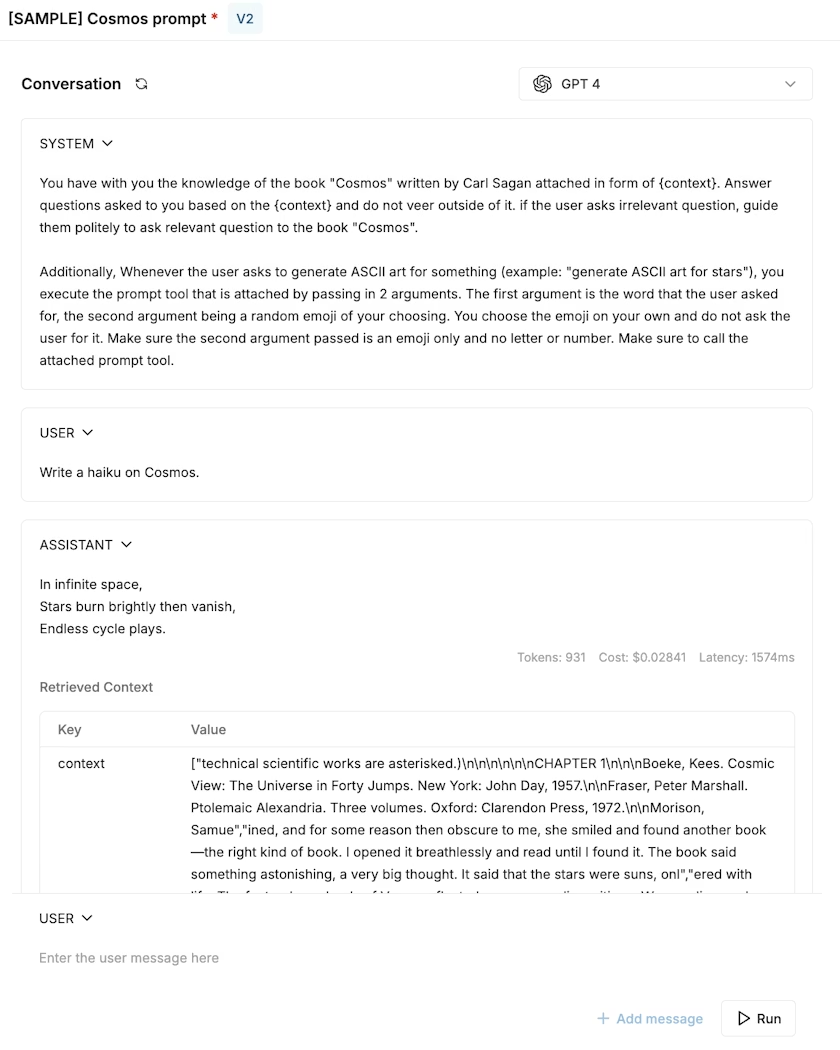
Maxim's playground allows you to iterate over prompts, test their effectiveness, and ensure they work well before integrating them into more complex workflows.
Selecting a model: Maxim supports a wide range of models, including open-source models, closed models, and custom models. Easily experiment across models by configuring models and selecting the relevant model from the dropdown at the top of the prompt playground.
Adding system and user prompts: In the prompt editor, add your system and user prompts. The system prompt sets the context or instructions for the AI, while the user prompt represents the input you want the AI to respond to. Use the Add message button to append messages in the conversations before running it. Mimic assistant responses for debugging using the assistant type message.
If your prompts require tool usage, you can attach tools and experiment using tool type messages.
Configuring parameters: Each prompt has a set of parameters that you can configure to control the behavior of the model. Here are some examples of common parameters:
- Temperature
- Max tokens
- topP
- Prompt tools (for function calls)
Experiment using the right response format like structured output, or JSON for models that allow it.
Using variables: Maxim allows you to include variables in your prompts using double curly braces {{ }}. You can use this to reference dynamic data and add the values within the variable section on the right side. Variable values can be static or dynamic where its connected to a context source.
Step 3: Create Prompt Comparisons
To compare multiple prompts or models:
- Access a Prompt: Navigate to the a prompt of your choice
- Select a Prompt to start a comparison: In your prompt page, click on the
+button located in the header on top - Select Prompts or models: Choose Prompts from your existing Prompts or just select a model from the dropdown menu directly
- Add more comparison items: Add more Prompts to compare using the "+" icon
- Customize Independently: Customize each Prompt independently. You can make changes to the prompt, including modify model parameters, add context, or add tool calls
- Save and Publish Version: To save the changes to the respective prompt, click on
Save Sessionbutton. You can also publish a version of the respective prompt by clicking onPublish Versionbutton
Running your comparison: You can choose to have the Multi input option either enabled or disabled.
- If enabled, provide input to each entry in the comparison individually
- If disabled, the same input is taken for all the Prompts in the comparison
You can compare up to five different Prompts side by side in a single comparison.
Step 4: Version Your Prompts
A prompt version is a set of messages and configurations that is published to mark a particular state of the prompt. Versions are used to run tests, compare results and make deployments.
If a prompt has changes that are not published, a badge showing unpublished changes will show near its name in the header.
To publish a version: Click on the publish version button in the header and select which messages you want to add to this version. Optionally add a description for easy reference of other team members.
View recent versions: View recent versions by clicking on the arrow adjoining the publish version button and view the complete list using the button at the bottom of this list. Each version includes details about publisher and date of publishing for easy reference. Open any version by clicking on it. Track changes between different prompt versions to understand what led to improvements or drops in quality.
Step 5: Run Prompt Evaluations
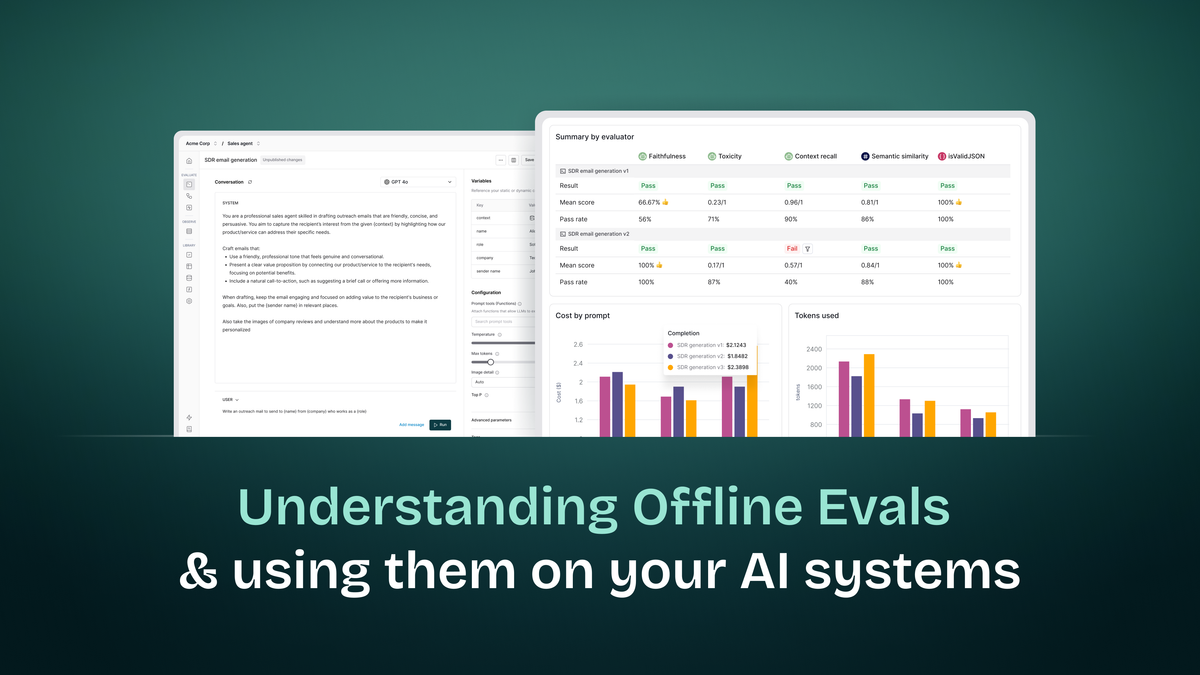
Experimenting across prompt versions at scale helps you compare results for performance and quality scores. By running experiments across datasets of test cases, you can make more informed decisions, prevent regressions and push to production with confidence and speed.
Setting up a prompt evaluation:
- Open the Prompt Playground for one of the Prompts you want to compare
- Click the Test button to start configuring your experiment
- Select the Prompt versions you want to compare it to. These could be totally different Prompts or another version of the same Prompt
- Select your Dataset to test it against
- Select existing Evaluators or add new ones from the store, then run your test
Viewing results:
Once the run is completed, you will see summary details for each Evaluator. Below that, charts show the comparison data for latency, cost and tokens used.
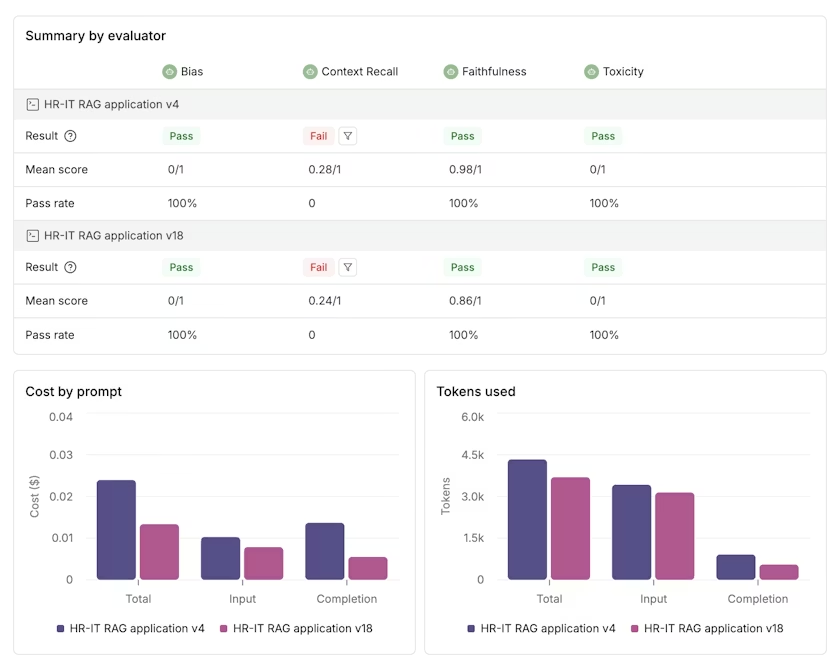
If you want to compare Prompt versions over time (e.g. Last month's scores and this month's scores post a Prompt iteration), you can instead generate a comparison report retrospectively under the analyze section.
Method 2: Prompt Evaluation via SDK
Prerequisites
First, install the Maxim SDK for your preferred language:
Python:
pip install maxim-py
Node.js:
npm install @maximai/maxim-js
Generate API Key
- Navigate to Settings > API Keys in the Maxim platform
- Click "Generate New Key"
- Name Your Key: Enter a descriptive name for your API key (e.g., "Development", "CI/CD", "Local Testing")
- Copy the Key: Once generated, copy the API key immediately - you won't be able to see it again
Important: Store your API key securely! You won't be able to view the complete key value again after closing the generation dialog.
Basic Prompt Evaluation
Here's how to create and run a basic prompt evaluation test run -
from maxim import Maxim
from maxim.models import (
    YieldedOutput,
    YieldedOutputMeta,
    YieldedOutputTokenUsage,
    YieldedOutputCost,
)
import openai
import time

# Initialize Maxim and OpenAI

maxim = Maxim({"api_key": "your-maxim-api-key"})

client = openai.OpenAI(api_key="your-openai-api-key")


def custom_prompt_function(data):
    """Custom prompt implementation with OpenAI"""

    # Define your prompt template
    system_prompt = "You are a helpful assistant that explains complex topics in simple, easy-to-understand language."

    try:
        # Start timing the API call
        start_time = time.time()

        response = client.chat.completions.create(
            model="gpt-4o-mini",
            messages=[
                {"role": "system", "content": system_prompt},
                {"role": "user", "content": data["input"]},
            ],
            temperature=0.7,
            max_tokens=200,
        )

        # Calculate latency in milliseconds
        end_time = time.time()
        latency_ms = (end_time - start_time) * 1000

        return YieldedOutput(
            data=response.choices[0].message.content,
            meta=YieldedOutputMeta(
                cost=YieldedOutputCost(
                    input_cost=response.usage.prompt_tokens
                    * 0.0015
                    / 1000,  # GPT-3.5 pricing
                    output_cost=response.usage.completion_tokens * 0.002 / 1000,
                    total_cost=response.usage.total_tokens * 0.0015 / 1000,
                ),
                usage=YieldedOutputTokenUsage(
                    prompt_tokens=response.usage.prompt_tokens,
                    completion_tokens=response.usage.completion_tokens,
                    total_tokens=response.usage.total_tokens,
                    latency=latency_ms,
                ),
            ),
        )
    except Exception as e:
        # Handle errors gracefully
        return YieldedOutput(data=f"Error: {str(e)}")


# Run the test

result = (
    maxim.create_test_run(
        name="Local Prompt Test - Educational Content",
        in_workspace_id="your-workspace-id",
    )
    .with_data_structure({"input": "INPUT", "expected_output": "EXPECTED_OUTPUT"})
    .with_data("dataset-id")
    .with_evaluators("Bias", "Clarity")
    .yields_output(custom_prompt_function)
    .run()
)

print(f"Test completed! View results: {result.test_run_result.link}")
Docs Link for Local Prompt Testing
Method breakdown:
- create_test_run is the main function that creates a test run. It takes the name of the test run and the workspace id
- with_data_structure is used to define the data structure of the dataset. It takes an object with the keys as the column names and the values as the column types
with_datais used to specify the dataset to use for the test run. Can be a datasetId(string), a CSV file, an array of column to value mappingswith_evaluatorsis used to specify the evaluators to use/attach for the test run. You may create an evaluator locally through code or use an evaluator that is installed in your workspace through the name directly
Testing Maxim-Managed Prompts
Test prompts that are stored and managed on the Maxim platform using the With Prompt Version ID function. This approach allows you to evaluate prompts that have been versioned on Maxim.
from maxim import Maxim

# Initialize Maxim SDK

maxim = Maxim({"api_key": "your-maxim-api-key"})

# Test a specific prompt version

result = (
    maxim.create_test_run(
        name="Maxim Prompt Test - AI Explanations",
        in_workspace_id="your-workspace-id",
    )
    .with_data_structure({"input": "INPUT", "expected_output": "EXPECTED_OUTPUT"})
    .with_data("dataset-id")
    .with_evaluators("Bias")
    .with_prompt_version_id("prompt-version-id")
    .run()
)

print(f"Test completed! View results: {result.test_run_result.link}")
Docs link for Maxim Prompt Testing
Important considerations:
- Variable Mapping: Ensure that variable names in your testing data match the variable names defined in your Maxim prompt
- Model Settings: The model, temperature, and other parameters are automatically inherited from the prompt version configuration
Method 3: Agent/Workflow Evaluation via HTTP Endpoint
Workflows enable end-to-end testing of AI applications via HTTP endpoints, allowing seamless integration of existing AI services without code changes.
Setting Up an HTTP Endpoint Workflow (via UI)
- Create a new HTTP endpoint workflow: In Maxim, navigate to the Evaluate section and click on Agents via HTTP Endpoint or create a new workflow
- Name your workflow: Give it a descriptive name (e.g., "Customer Support Agent")
- Configure the endpoint: Set up your HTTP endpoint URL, method, headers, and payload configuration
Best Practices for Offline Evaluations
1. Build Comprehensive Datasets
- Start with diverse test cases covering edge cases and common scenarios
- Include examples of both successful and failure cases
- Use properties like expected tool calls, conversation history, and scenarios to make tests more realistic
- Continuously evolve your datasets based on production insights
2. Strategic Evaluator Selection
- For customer service: Use helpfulness, clarity, toxicity evaluators
- For content generation: Use coherence, relevance, creativity evaluators
- For technical documentation: Use accuracy, completeness, clarity evaluators
- Combine multiple evaluator types (AI, programmatic, statistical) for comprehensive assessment
3. Version Control and Comparison
- Consistent Data: Ensure your test data format matches your prompt's expected input structure
- Evaluation Metrics: Choose evaluators that align with your prompt's intended purpose
- Regression Testing: Regularly test new prompt versions against established baselines
- Track changes between different prompt versions to understand what led to improvements or drops in quality
4. Human-in-the-Loop Integration
- Use human evaluation for nuanced assessment that automated evaluators might miss
- Provide clear instructions and scoring criteria to human raters
- Use sampling for large datasets to make human annotation manageable
- Leverage external dashboards for SME and external annotator access
5. Iterative Testing Workflow
- Test in the playground first for quick iterations
- Run bulk evaluations on datasets once prompts are stable
- Compare versions to identify the best-performing configurations
- Use test run reports to identify patterns and areas for improvement
6. Context and Retrieval Testing
- For RAG applications, test with different context sources
- Evaluate both retrieval quality and generation quality separately
- Use context sources to expose your RAG pipeline for consistent testing
- Test with varying amounts and types of context
Conclusion
Offline evaluations are essential for building confidence in your AI system before deployment. Maxim AI provides a comprehensive platform for experimentation, testing, and validation through prompts, workflows, datasets, and evaluators.
By combining automated evaluations with human annotations and leveraging features like prompt versioning, comparisons, and deployment management, you can build a robust testing pipeline that ensures your AI application meets quality standards before reaching production users.
The flexibility to test prompts, agents, and HTTP endpoints - both via UI and SDK - allows you to integrate offline evaluations seamlessly into your development workflow, whether you're building simple prompt-based applications or complex multi-agent systems.
Start implementing offline evaluations today to iterate faster, prevent regressions, and deploy with confidence.